Guide · 4 minutes
Edit a photo
Light and colour, a look, a crop, something removed and the background cut out, saved as the next version.
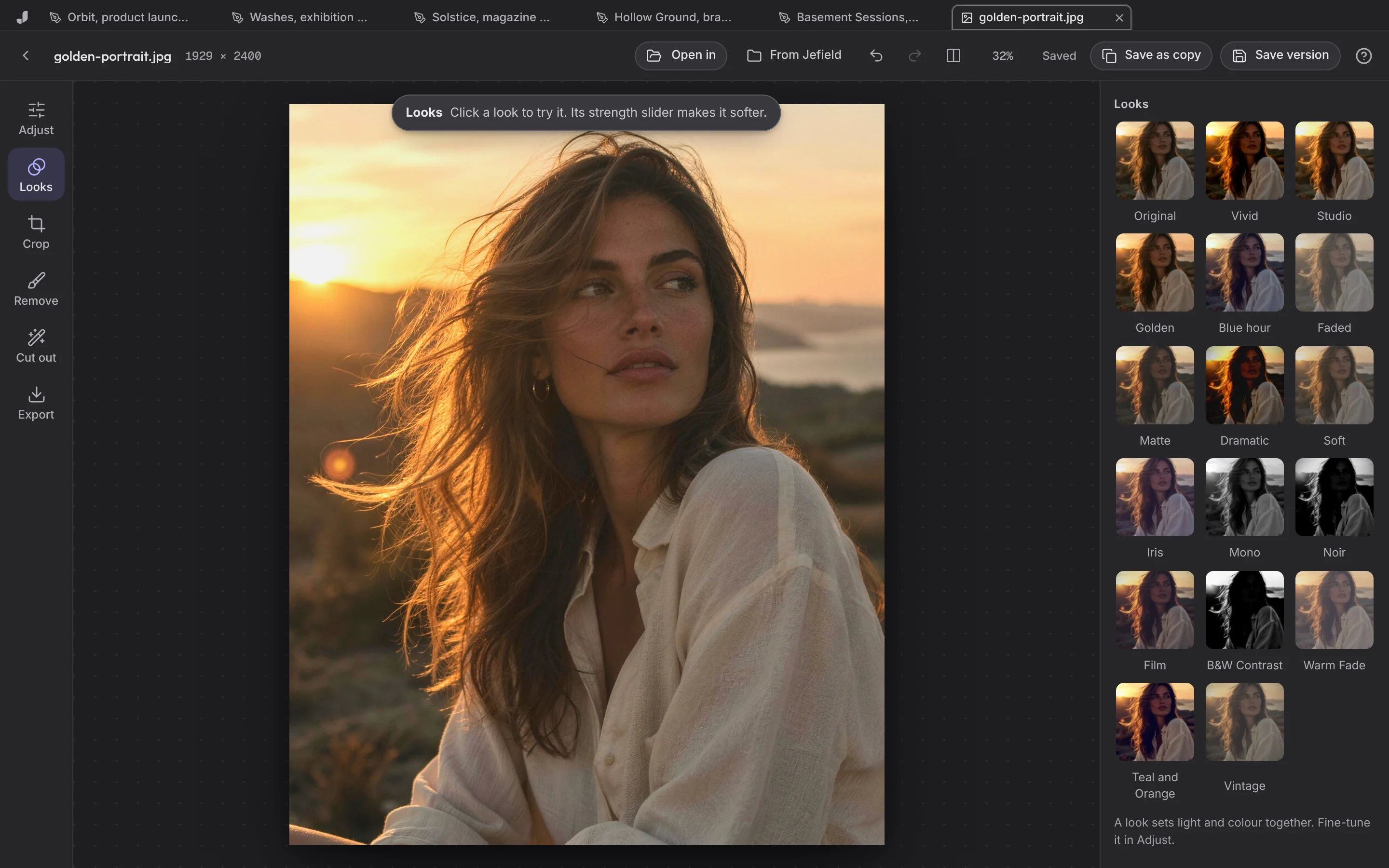
- Open a picture from Files, or choose Photo on Home and open one.
- Adjust: exposure, contrast, highlights, shadows, temperature, tint, vibrance, saturation, hue, sharpening, noise and vignette. Double-click a slider to reset it. Hold \ to see the original.
- Looks: twelve, from Vivid to Noir. A look sets light and colour together; fine-tune it in Adjust.
- Crop: pick a shape, drag the corners, straighten by degrees, turn and flip.
- Remove: paint over a wire, a mark or a person, and let go. The gap is filled from what's around it, on your device.
- Cut out: Remove background keeps the subject on transparency (a JPEG becomes a PNG). The model downloads once, about 14 MB.
- Save, or Export as PNG, JPG or WebP, from twice the size down to a quarter.
For layers, masks and adjustment layers, open the picture in Layers instead: Open in, then Layers. Both save the same file, so the next version is there whichever you open.